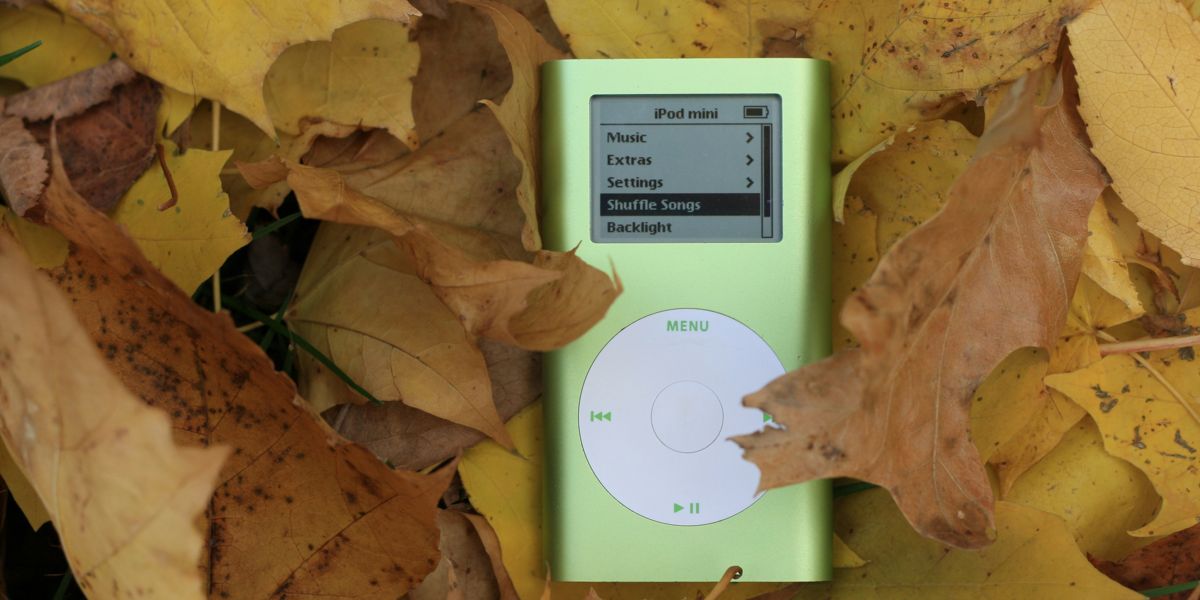
This video will show you how to repair and upgrade a 1st or 2nd Generation iPod Mini.
It will also show you how to tell them apart and common mistakes to avoid.
The iPod Mini is easily one of the most repairable and upgradable iPods ever made.
It's a fantastic choice if you want a device that’s super durable, customizable, and simple.
Unlike the more delicate iPod Nanos, the mini has large, robust internal components.
The most common issues you’ll face involve replacing the battery or upgrading the hard drive, both of which are very easy to do.
Once you get it working, it's still a great music player…even today. It removes all distractions so you're free to enjoy the music.
So when you're ready, grab your iPod and tools and let's get started…
Note: It's much easier to watch the video above, but if you prefer the text explaination, here it is.
Disassemble Your iPod Mini
Getting into the iPod mini is relatively simple.
1. Remove the Plastic Covers
Use a box cutter or utility knife to carefully pry under the plastic covers where they meet the metal body on the top and bottom.
Plastic pry tools often slip and can damage the edge, but the covers themselves are thick and should pop off easily.
2. Remove the Metal Sheet
Once the plastic is off, you’ll find a metal plate at the bottom. It’s held in place by two guide rails.
Gently pry the corners with a flathead screwdriver, and it should pop right out.
3. Remove the Flex Cable
This part is delicate, so go slow.
The button flex cable is the most fragile component in the entire iPod, and it’s also the easiest to damage. Use a plastic pry tool to gently rock the connector side-to-side.
Eventually it will pop out and you can continue with the disassembly.
4. Remove the Internal Assembly
Now unscrew the two top screws, then push from the bottom to slide out the internal assembly.
If it resists, the battery may have expanded slightly, so use tweezers to push against the board and ease it out.
Battery Replacement
If you're going to open up a Mini, the original battery should always be replaced.
Old batteries can degrade quickly, so this will save you the hassle of changing it later.
The battery is plug-and-play, no soldering required.
Just pull the old one out and click the new one in.
Hard Drive Upgrade
The original hard drive was an actual spinning microdrive.
It's crazy how small they made them.
To remove it, first remove the tape and rubber bumpers.
Then use a plastic pry tool to gradually move the drive side to side to detach the drive from the connector.
Be careful with the connector. It’s fragile and easy to rip from the flex cable if pried too hard. The same caution applies to the motherboard side.
You now have two upgrade options:
- Swap it with a high-capacity CF card
- Use a CF-to-microSD adapter for even more storage (up to 256GB with a dual adapter)
To install the new storage, simply line up the pins and gently push them into the card.
Most new CF cards are thinner Type I cards. To stop them from shaking inside, tape a piece of foam on top before sealing it up.
Troubleshooting and Other Repairs
While battery and hard drive upgrades are the most common, here are other things that may need to be repaired.Component Problem Notes Buttons Dead or unresponsive The assembly slides out the bottom. Push down and forward with the bottom of the iPod facing away from you. Replacement is rare unless the flex cable gets torn. Headphone Jack No sound The jack is modular and clips off the PCB. If a new one doesn’t fix the issue, the logic board may be the culprit. Cleaning the parts in an ultrasonic cleaner can work. Screen Blank or damaged display Rare failure. Held in by side clips and a latch-style flex connector. Some models have different connector sizes so double-check before buying a replacement. Front Plastic Cover Cracked or scratched Spray with alcohol and heat it up to soften adhesive. Push it out gently. If it's too far gone, buy a new one or take one off an old one. Reattach with double-sided tape.
Reassembly and Finishing Up
Now it's time to put it back together.
You basically just have to reverse the steps.
1. Reinsert the Assembly
Slide the new assembly back in.
If it snags, use tweezers from the bottom to guide it down.
There’s enough clearance to make this step pretty stress-free.
2. Testing
Before you button everything up, check to see that it's working.
Reconnect the button cable and replace the top screws. Power it on and you should see the folder icon.
Restore it using iTunes via USB.
1st Gen Minis Note: They require a wall charger to boot after a restore. USB won’t cut it. 2nd gens don’t have this issue.
Test the buttons, audio, sync, etc. before moving on.
3. Reattach the Top Plastic Cover
The original glue won’t stick again so it has to be replaced.
First, clean off the old adhesive with your fingers and some isopropyl alcohol.
Then stick one side of double-sided tape to the plastic cover, then cut around the edge of the cover with a scissors to trim the tape to fit the cover.
Then remove the paper on the top of the tape and reinstall the plastic cover on the Mini.
4. Reattach the Bottom Cover
Reinstall the bottom metal plate by sliding it into the slot.
Be extra careful with the plastic end cap.
It has pins on 3 sides and if they are misaligned, they can destroy the flex cable.
So look carefully before installing the cover.
To make things easier, you can snap off the side clips to allow more space for adhesive. The side clips don't do anything anyway.
Then attach double-sided tape as you did with the top cover and install the bottom cover.
5. Final Polish
Wipe the whole exterior of the iPod down with isopropyl alcohol.
This removes residue, refreshes the look, and even gets rid of gunk that can look like scratches.
Toilet paper works best for this, it creates less lint than tissues.
Where to Find Parts
Luckily, there has been a resurgence of interest in the iPod Mini, so companies have started making new replacement parts for it.
You can find new parts on AliExpress or Amazon, but the best place is Elite Obsolete Electronics.
The next best source is to buy a used iPod on Mini on eBay or Mercari and use it for parts.
Keep in mind that some MicroSD-to-CF adapters that work fine on Windows won't work inside iPods.
They've been silently revised and cause compatibility issues, especially with older iPod models.
So if you're having issues, try a different adapter.
1st Gen vs. 2nd Gen: What's the Difference?
Here's a quick look at how the 2 generations are different.Feature 1st Gen 2nd Gen Button Color Always silver/gray Matches housing color Housing Markings No storage info Storage capacity printed on back Battery Life 6–8 hours 18–20+ hours Maximum Storage Upgrade 128GB 256GB
The 2nd gen is the best one to get because the battery life is better and the maximum storage is double.
This is the result of a change that they made to the logic board.
How to Choose Which One to Buy
Which one should you buy and fix up?
It just depends on your needs.
If you don't have a ton of music and don't need a lot of battery life, then either generation will do.
But if you want the best battery life and the highest upgradeability, then the 2nd gen is the must have.
That's why the 2nd gen is one of the best iPods of all-time.
Once you've fixed up your iPod or bought a refurbished one, here's how to get high quality music.
A huge thanks to Parts Plus Pods for the great tutorial.
Once your iPod is up and running, here are great places to download music. You can also start buying CDs.