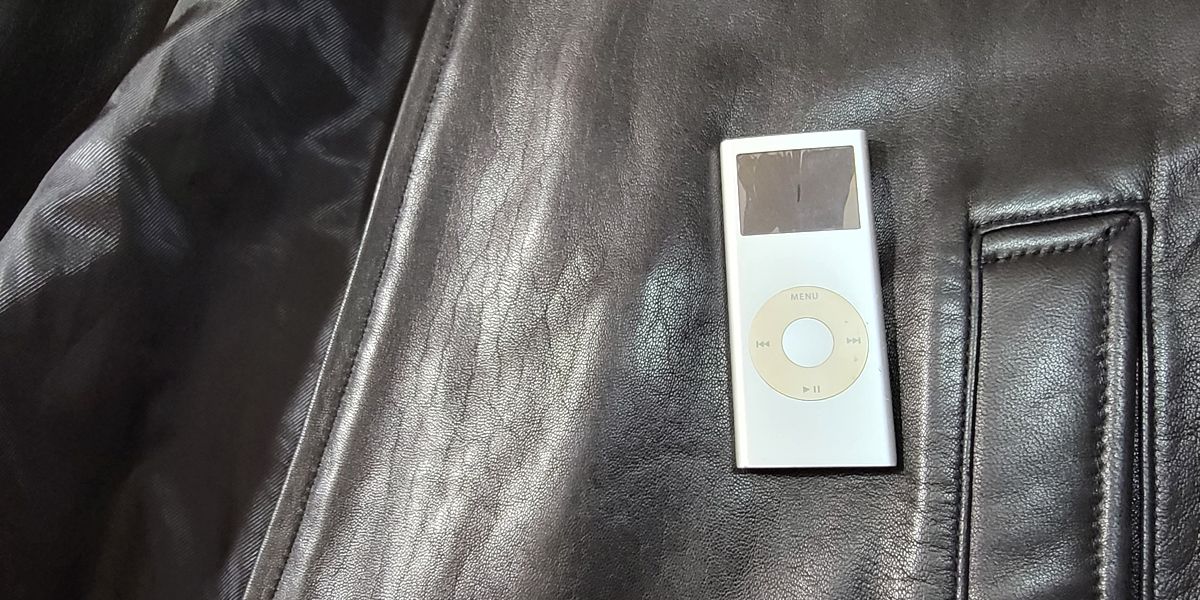
Before you think about repairing your iPod Nano 2nd generation, just know that this isn't the easiest model to repair. There is soldering and delicate work involved.
If you want the easiest iPod models to repair, read this guide.
Even the 1st generation Nano is easier to repair than the 2nd.
But if your Nano has sentimental value, or you really like the sleek design, then continue reading to learn how to repair this model.
This guide will show you how to fix all elements of this device. It's better to watch the video below, but the text is also provided.
This is a comprehensive and in depth guide covering basically everything you need to know to fix your iPod Nano 2nd Gen.
It will cover:
- Disassembly
- Battery replacement
- Screen replacement
- Troubleshooting common issues like dead buttons and expanded batteries
Initial Device Disassembly
To begin, you will start by removing both the top and bottom plastic pieces.
It's recommended to use a box cutter knife, ideally an old blunt one.
Plastic tools are often not thick enough to properly pry the casing.
Although a knife slightly increases the risk of scratching, it speeds up the removal process.
For the top piece, pry it up towards the middle, avoiding the area where the hold switch button is located.
This plastic piece is only held in by tape and is not glued.
Next, remove the three screws: the larger one is at the bottom, and the two smaller ones are at the top.
Use a pair of flat head tweezers to access and remove the internal components.
Carefully lift up the headphone jack using the tweezers beneath the small knob, ensuring you are mindful of the thin flex cable attached to it.
Unclip the headphone jack where it connects to the motherboard.
To remove the entire iPod assembly from the metal case, insert the flat tweezers straight into the bottom side of the 30 pin connector and push.
If you have an expanded battery, the assembly will not slide out easily.
Go slowly.
Screen and Battery Removal
The screen is simply held on with tape.
Use your box cutter tool to go in between the metal frame and the glass screen itself.
Be very careful not to bend the glass screen or you will snap it.
When removing the screen, keep the silver piece attached to the white bit.
The silver piece is part of the backlight and reflects light back onto the display.
To disconnect the screen from the motherboard, you must lift up the small black plastic clip on the screen connector.
This clip might fall out, but it can be put back in.
Next, lift the battery off the motherboard.
It is held in place by tape, so use a tool to pry it up from the back.
You must avoid puncturing the battery during this step.
Also remove the battery frame piece.
Replacing the battery requires a soldering iron, as there is no alternative method for this iPod model.
The Soldering Process for Battery Replacement
The thickness of the replacement battery is extremely important because the iPod Nano 2nd Gen uses a single piece housing.
If the battery is too thick, it will not slide back in.
Or worse, pushing it in could cause chips to pry off the board, leading to issues like the iPod not being recognized when plugged in.
If your aftermarket battery is slightly thick, you may need to reduce the size of the solder connection on the battery itself.
Take off the tape covering the Battery Management System or BMS.
Use your soldering iron on the two solder blobs where the battery connects to the BMS.
Remove the old solder, and apply new solder, preferably leaded solder, as it works better than the lead free type typically used.
Before reassembling the battery, use Kapton tape which is a nonconductive, temperature resistant tape.
This tape is necessary to prevent short circuits.
Ensure the positive and negative connections are fully covered to avoid the risk of fire.
To remove the old battery from the motherboard, place the soldering iron across the three solder balls where it connects, and once heated, it should pull straight out.
Use pointed head tweezers to gently scrape away the remaining black mess from the board joints.
Scrape gently back and forth to clean the area without ripping the traces.
Apply flux to the three holes on the board to improve solder flow and reduce oxidization.
Identify the connections: the black wire is negative and outermost, the red wire is positive and middle, and the innermost white wire tracks the battery level.
You must connect all three wires, or the iPod will incorrectly report zero battery level at all times.
Use the soldering iron to install the first wire, and then use tweezers to guide the second and third wires in.
After soldering the battery in place, push down the wires so they are flush with the board.
This prevents issues when reinserting the motherboard.
Finally, clean up the legs sticking out of the top of the board.
Use snips to cut these legs as low as possible.
Use the soldering iron to push the remaining wire ends flush with the board so they do not touch the case or each other, which would cause a short and prevent the device from turning on.
Clean the remaining flux off the board using isopropyl alcohol.
Reassembly Testing and Troubleshooting
To install the screen, clip the flex cable into the connector and lock the black plastic clip.
Place Kapton tape over the screen and the battery solder joints to prevent shorts.
Test the device by plugging it in.
If the Apple logo appears but disappears when unplugged, the battery is likely flat.
If it does not hold a charge after 15 minutes, the issue is likely the battery, the BMS, or the soldering technique.
If you plug it in and get no Apple logo at all, it indicates a logic board issue, potentially due to water damage.
Since schematics are unavailable and replacement boards are affordable, repairing a complex logic board issue is generally not worth the effort.
When sliding the motherboard back in, if it stops at multiple points, verify the battery thickness.
Forcing the board can rip chips off the board or damage SMDs near the LCD flex.
If the black foam around the screen peels off during reinsertion, remove it with tweezers, as it is not functionally necessary and can leave marks on the plastic.
If the assembly sticks at the end, the metal covering is likely catching on the headphone jack.
Insert flathead tweezers into the 30 pin connector hole and push up until you hear a click, allowing the board to slide in.
Also ensure the click wheel flex cable is not caught or bent. If the iPod is not fully seated, use a screwdriver to push it fully in.
Alternatively, install the bottom screw first to pull the logic board towards the bottom of the case.
Before attaching the plastics, test the buttons, headphone jack, and lock switch to save time.
Repairing Buttons and Front Plastic
Dead buttons are usually caused by corrosion, appearing as green material under the buttons.
To access the buttons, use a heat gun to soften the adhesive around the front screen, potentially using isopropyl alcohol to weaken it further.
Be careful not to bend off the chip on the flex cable attached to the buttons.
Scrape the corrosion off the buttons gently with tweezers.
Also scrape down the metal dome parts, as corrosion often affects all of them.
If scraping reveals that the traces are ripped or not visible, you may need to buy a new click wheel.
After scraping, wipe the area with isopropyl alcohol and a cotton bud.
Clean the old adhesive off the metal frame piece.
Crucially, try to keep the small black plastic dots on this piece intact, as they press against the back of the buttons for proper clicking function.
Use high quality black 3M double sided adhesive tape to install new components.
Use tweezers to push the new front plastic piece into place from behind to ensure it is flush.
Final Assembly
If the original adhesive is gone, install new double sided tape on the top and bottom plastics.
Black 3M tape is highly recommended for all electronics repairs.
When attaching the top plastic, ensure the switch on the plastic and the switch on the iPod are in the same position so that the lock function works.
For the bottom plastic, cut two slits down the side of the 30 pin opening in the tape. Then peal way the excess with the knife.
When applying tape near the headphone jack, ensure that none of the adhesive enters the ports, as this can block the connection or cause audio issues.
Once that is done, wipe down the iPod with isopropyl alcohol for a final clean.
That's it, you're done!
Remember, you can always add Bluetooth to this model and use it with your wireless headphones.
To get new music, you can check out these sources or there are always CDs.